Removing a connection on LinkedIn is a straightforward process, whether you’re looking to streamline your network or simply disconnect from someone. This guide provides a detailed walkthrough for removing connections on both the desktop and mobile versions of LinkedIn.
Why Remove a Connection?
There are several reasons why you might want to remove a connection on LinkedIn:
-
Streamlining your network: You may want to focus on connections that are most relevant to your professional goals.
-
Privacy concerns: You might want to limit the information someone can see about you.
-
No longer relevant: Your professional relationship with someone may have changed, making the connection less valuable.
-
Unwanted interactions: You may want to avoid further contact with a particular individual.
Removing a Connection on LinkedIn (Desktop)
Here’s how to remove a connection using the desktop version of LinkedIn:
-
Navigate to Your Network: Click on the ‘My Network’ icon at the top of your LinkedIn homepage.
-
Go to Connections: On the ‘My Network’ page, click on ‘Connections’ on the left-hand side.
-
Find the Connection: You can either scroll through your connections or use the search bar to find the person you want to remove.
-
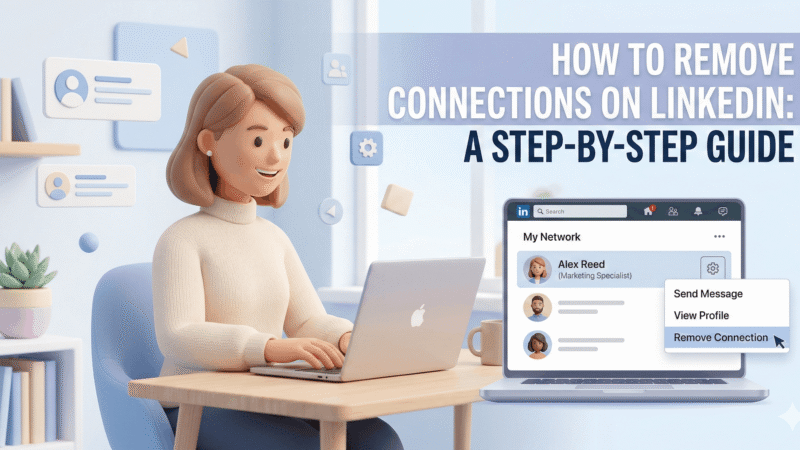
Remove the Connection: Once you’ve found the person, click on the three dots (‘More…’) to the right of their name.
-
Select ‘Remove Connection’: A dropdown menu will appear. Select ‘Remove Connection’.
-
Confirm Removal: LinkedIn will ask you to confirm your decision. Click ‘Remove’ to finalize the process.
Removing a Connection on LinkedIn (Mobile App)
The process is similar on the LinkedIn mobile app:
-
Tap ‘My Network’: Open the LinkedIn app and tap on the ‘My Network’ icon at the bottom of the screen.
-
Tap ‘Connections’: Under ‘Manage my network’, tap on ‘Connections’.
-
Find the Connection: Search for the person you want to remove or scroll through your connections.
Power Your LinkedIn Company PageBuy Company Page Followers -
Tap the Three Dots: Tap the three dots to the right of the person’s name.
-
Select ‘Remove Connection’: Choose ‘Remove Connection’ from the menu that appears.
-
Confirm Removal: Confirm your decision by tapping ‘Remove’.
What Happens When You Remove a Connection?
When you remove a connection on LinkedIn:
-
They will no longer be directly connected to you.
-
They will no longer see your updates in their feed (unless you have public posts).
-
They will not be notified that you have removed them.
-
They can still view your public profile.
-
They can still send you a connection request in the future.
Alternative: Unfollowing a Connection
If you want to stop seeing someone’s posts without removing them as a connection, you can unfollow them. To do this:
-
Go to their Profile: Navigate to the profile of the person you want to unfollow.
-
Click the ‘Following’ Button: On their profile, click the ‘Following’ button.
-
Select ‘Unfollow’: Choose ‘Unfollow’ from the dropdown menu.
This way, you remain connected but won’t see their updates in your feed. This is a less drastic option than removing a connection entirely.
Removing a connection on LinkedIn is a simple way to manage your network and control your online presence. Whether you’re using the desktop site or the mobile app, the process is quick and easy to follow.