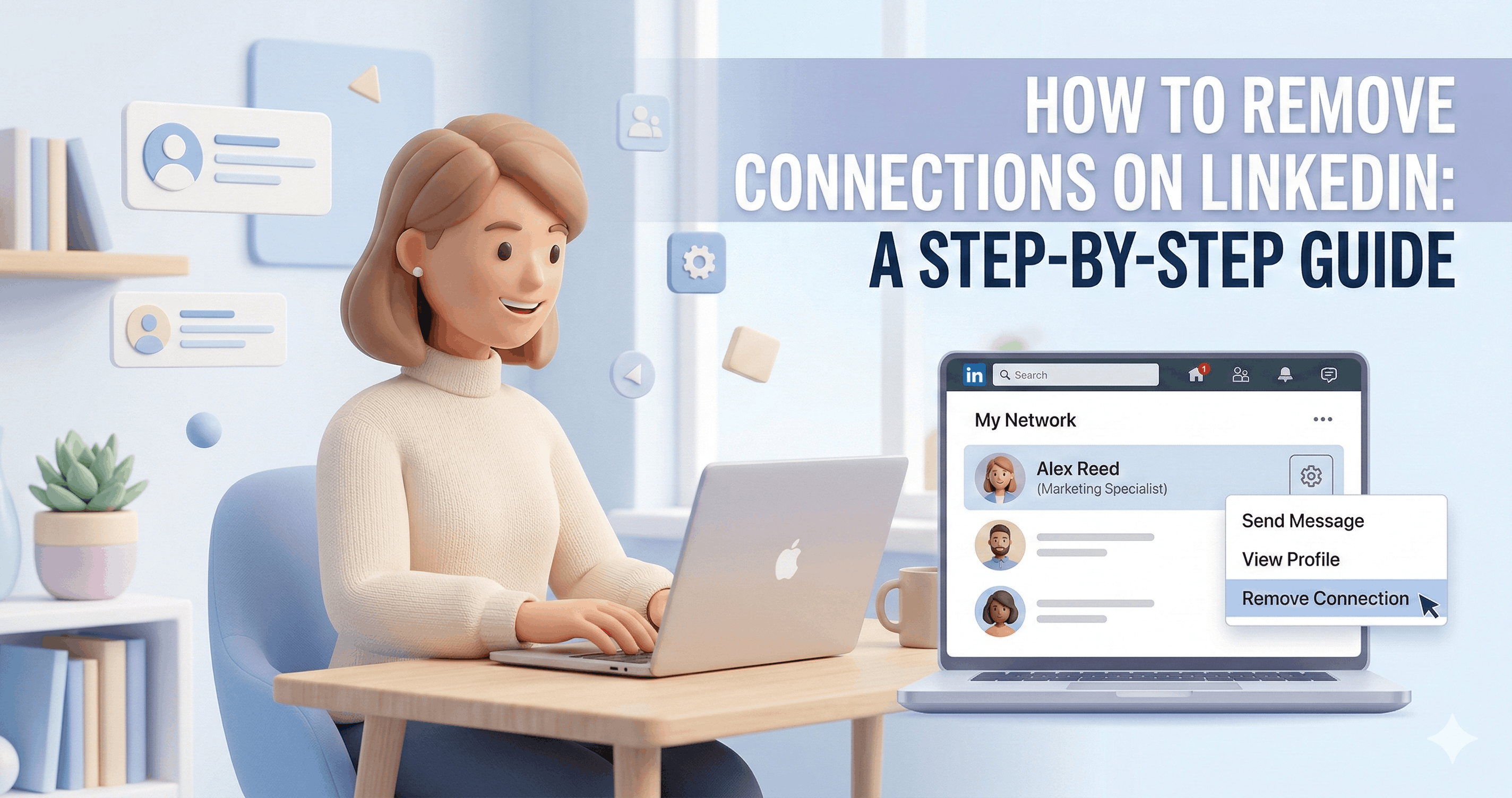
<p><span style="color: rgb(13, 13, 13);">Removing a connection on LinkedIn is a straightforward process, whether you're looking to streamline your network or simply disconnect from someone. This guide provides a detailed walkthrough for removing connections on both the desktop and mobile versions of LinkedIn.</span></p><h2>Why Remove a Connection?</h2><p>There are several reasons why you might want to remove a connection on LinkedIn:</p><ul><li><p><strong>Streamlining your network:</strong> You may want to focus on connections that are most relevant to your professional goals.</p></li><li><p><strong>Privacy concerns:</strong> You might want to limit the information someone can see about you.</p></li><li><p><strong>No longer relevant:</strong> Your professional relationship with someone may have changed, making the connection less valuable.</p></li><li><p><strong>Unwanted interactions:</strong> You may want to avoid further contact with a particular individual.</p></li></ul><h2>Removing a Connection on LinkedIn (Desktop)</h2><p>Here’s how to remove a connection using the desktop version of LinkedIn:</p><ol><li><p><strong>Navigate to Your Network:</strong> Click on the 'My Network' icon at the top of your LinkedIn homepage.</p></li><li><p><strong>Go to Connections:</strong> On the 'My Network' page, click on 'Connections' on the left-hand side.</p></li><li><p><strong>Find the Connection:</strong> You can either scroll through your connections or use the search bar to find the person you want to remove.</p></li><li><p><strong>Remove the Connection:</strong> Once you've found the person, click on the three dots ('More...') to the right of their name.</p></li><li><p><strong>Select 'Remove Connection':</strong> A dropdown menu will appear. Select 'Remove Connection'.</p></li><li><p><strong>Confirm Removal:</strong> LinkedIn will ask you to confirm your decision. Click 'Remove' to finalize the process.</p></li></ol><h2>Removing a Connection on LinkedIn (Mobile App)</h2><p>The process is similar on the LinkedIn mobile app:</p><ol><li><p><strong>Tap 'My Network':</strong> Open the LinkedIn app and tap on the 'My Network' icon at the bottom of the screen.</p></li><li><p><strong>Tap 'Connections':</strong> Under 'Manage my network', tap on 'Connections'.</p></li><li><p><strong>Find the Connection:</strong> Search for the person you want to remove or scroll through your connections.</p></li><li><p><strong>Tap the Three Dots:</strong> Tap the three dots to the right of the person's name.</p></li><li><p><strong>Select 'Remove Connection':</strong> Choose 'Remove Connection' from the menu that appears.</p></li><li><p><strong>Confirm Removal:</strong> Confirm your decision by tapping 'Remove'.</p></li></ol><h2>What Happens When You Remove a Connection?</h2><p>When you remove a connection on LinkedIn:</p><ul><li><p>They will no longer be directly connected to you.</p></li><li><p>They will no longer see your updates in their feed (unless you have public posts).</p></li><li><p>They will not be notified that you have removed them.</p></li><li><p>They can still view your public profile.</p></li><li><p>They can still send you a connection request in the future.</p></li></ul><h2>Alternative: Unfollowing a Connection</h2><p>If you want to stop seeing someone's posts without removing them as a connection, you can unfollow them. To do this:</p><ol><li><p><strong>Go to their Profile:</strong> Navigate to the profile of the person you want to unfollow.</p></li><li><p><strong>Click the 'Following' Button:</strong> On their profile, click the 'Following' button.</p></li><li><p><strong>Select 'Unfollow':</strong> Choose 'Unfollow' from the dropdown menu.</p></li></ol><p>This way, you remain connected but won't see their updates in your feed. This is a less drastic option than removing a connection entirely.</p><p>Removing a connection on LinkedIn is a simple way to manage your network and control your online presence. Whether you're using the desktop site or the mobile app, the process is quick and easy to follow.</p><p></p>
<script type="application/ld+json">{
"@context": "https://schema.org",
"@type": "BlogPosting",
"headline": "How to Remove Connections on LinkedIn: A Step-by-Step Guide",
"description": "Learn how to remove a connection on LinkedIn using both desktop and mobile. Streamline your network and manage your professional contacts effectively.",
"image": "https://smmsurge.com/remote-storage-api/uploads/media_69a0ebaaa90a21.86560209.png",
"author": {
"@type": "Person",
"name": "AutoBlog AI",
"jobTitle": "AI Content Creator",
"worksFor": {
"@type": "Organization",
"name": "AutoBlog"
}
},
"publisher": {
"@type": "Organization",
"name": "AutoBlog",
"logo": {
"@type": "ImageObject",
"url": "https://smmsurge.com/logo.png"
}
},
"datePublished": "2026-02-17 17:41:11.000",
"dateModified": "2026-02-28T08:58:11.038Z",
"mainEntityOfPage": {
"@type": "WebPage",
"@id": "https://smmsurge.com/blog/remove-linkedin-connections"
}
}</script>
<script type="application/ld+json">{
"@context": "https://schema.org",
"@type": "Organization",
"name": "AutoBlog AI",
"url": "https://smmsurge.com",
"logo": "https://smmsurge.com/logo.png",
"sameAs": [
"https://twitter.com/autoblogai",
"https://facebook.com/autoblogai",
"https://linkedin.com/company/autoblogai"
],
"contactPoint": {
"@type": "ContactPoint",
"telephone": "+1-000-000-0000",
"contactType": "customer service"
}
}</script>
<script type="application/ld+json">{
"@context": "https://schema.org",
"@type": "BreadcrumbList",
"itemListElement": [
{
"@type": "ListItem",
"position": 1,
"name": "Home",
"item": "https://smmsurge.com"
},
{
"@type": "ListItem",
"position": 2,
"name": "Blog",
"item": "https://smmsurge.com/blog"
},
{
"@type": "ListItem",
"position": 3,
"name": "Social Media",
"item": "https://smmsurge.com/blog/category/social-media"
},
{
"@type": "ListItem",
"position": 4,
"name": "How to Remove Connections on LinkedIn: A Step-by-Step Guide",
"item": "https://smmsurge.com/blog/remove-linkedin-connections"
}
]
}</script>
<script type="application/ld+json">{
"@context": "https://schema.org",
"@type": "FAQPage",
"mainEntity": [
{
"@type": "Question",
"name": "Does someone get notified if I remove them on LinkedIn?",
"acceptedAnswer": {
"@type": "Answer",
"text": "No, LinkedIn does not notify a user when you remove them as a connection. They will only realize it if they actively check your connections list or attempt to interact with you as a first-degree connection."
}
},
{
"@type": "Question",
"name": "Can someone still see my profile if I remove them as a connection?",
"acceptedAnswer": {
"@type": "Answer",
"text": "Yes, removing a connection only affects your direct connection status. They can still view your public profile and any content you've made publicly available. Your profile's visibility settings determine what non-connections can see."
}
},
{
"@type": "Question",
"name": "If I remove someone, can they send me another connection request?",
"acceptedAnswer": {
"@type": "Answer",
"text": "Yes, removing a connection does not prevent them from sending you another connection request in the future. You will receive the request as normal and can choose to accept or ignore it."
}
},
{
"@type": "Question",
"name": "What's the difference between removing a connection and blocking someone on LinkedIn?",
"acceptedAnswer": {
"@type": "Answer",
"text": "Removing a connection simply severs your direct link. Blocking someone, however, prevents them from seeing your profile, sending you messages, or sending you connection requests. It's a more comprehensive way to restrict interaction."
}
},
{
"@type": "Question",
"name": "Is it better to unfollow someone instead of removing them as a connection?",
"acceptedAnswer": {
"@type": "Answer",
"text": "It depends on your goal. Unfollowing someone means you won't see their posts, but you remain connected. This is a less drastic option if you want to maintain the connection but avoid their content. Removing them severs the connection entirely."
}
}
]
}</script>